Skip to main contentWestern Washington University Western Washington University
  • Calendar
  • Directory
  • Index
  • Map
  • myWestern
Refine search

OCE Planning Resources

Planning Information for Programs Supported by OCE

Tips and FAQs
  • Home
  • Acad. Year & Degr. Prgm. Planning
    • AY & Degr. Prgm. Planning Resources
    • AY & Degr. Prgm. Planning Form Key
    • AY & Degr. Prgm. Planning Memo
    • Self-Sustaining Planning Calendar
  • Summer Session Planning
    • Summer Session Planning Resources
    • Summer Session Planning Form Key
    • Summer Session 2026 Planning Memo
    • Summer Session Scheduling / Block Scheduling
    • Summer Session Timeline
  • Non-Credit Planning
    • Non-Credit Planning Resources
    • Non-Credit Forms and Documents
    • Non-Credit Process Documentation
  • Resources
    • Calendar
    • eForms
    • Tips and FAQs
    • Reporting
    • Catalog Entries
    • Chart of Accounts
  • Contact Information

Tips and FAQs

Deleting Course from the Planning Document (Academic Year/Degree and Certificate Programs Only)

Applies to Academic Year and Degree/Certificate Programs Only — Does not apply to Summer Session.

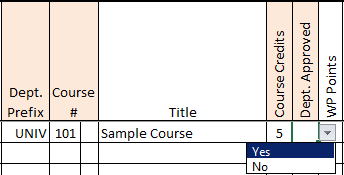
In lieu of deleting courses from the planning document, please change the indicator in the “Department Approved” category.  This gives departments the option to review and indicate whether an offering is supported or not.

Image: Reviewing a Removed Course

By default, all offerings have “No” selected. If the department does not want to offer a course, this field should remain unchanged.

Tips for Working with the Excel Planning Document

Click on an item below to expand the tutorial.

Adding New Rows

You can add a new row by:

  1. Selecting an entire line:
    Image: Selecting a Row in Excel
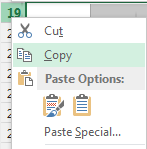
  2. Right-click and select “Copy”:
    Image: Selecting "Copy" in Excel
  3. Right-click on a row title (located on the left) and select “Insert Copied Cells”:
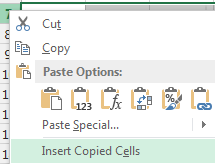
    Image: Selecting "Insert Copied Cells” in Excel
  4. The new line will be inserted above the highlighted row:
    Image: Viewing Copied Row in Excel

Adding Courses to the Planning Document

  1. Add a new row (if needed) following the instructions above.
  2. Complete the following fields in the Planning Document:
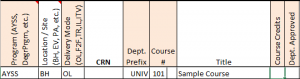
    Image: Adding a Course to the Planning Document

    • Program
    • Site
    • Delivery Mode
    • Department Prefix
    • Course Number
    • Credits
    • Minimum Enrollment
    • Maximum Enrollment
    • Meeting Days and Times
      Additional information may be necessary, review the planning information to determine if you need to complete any other fields.
  3. In the CRN field, enter the word “Add”:
    Image: Adding a New Course - CRN Field
  4. After the course is added, be sure to change the “Department Approved” status to “Yes”:
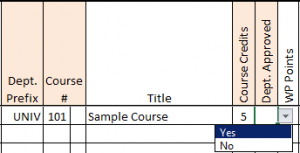
    Image: Adding a New Course - Department Review
  5. Review the entry to ensure all fields are completed:

    Image: Reviewing Added Course in Planning Document
  6. Extended Education will set-up the course in Banner, once the approved Planning Document has been returned via the eSign form.

Reviewing the Compensation Information

Compensation information can be found in the UFWW CBA.

Zooming

The ability to zoom in and out can be found in the bottom right corner in Excel:
Image: Zooming in Excel

Contact Information

E-Mail: OCE.Forms@wwu.edu

Bookmarks

  • Outreach and Continuing Education
  • Study USA
  • Summer Session
  • WesternOnline

Western Washington University

516 High Street
Bellingham, WA 98225

(360) 650-3000

Contact Western

  • Western Facebook
  • Western Instagram
  • Western Flickr
  • Western Youtube
  • Western Today RSS

Accessibility | Privacy